Biggest Rog Claymore Ii Buying Mistakes (And How to Avoid Them)
The ROG Claymore II represents a significant evolution in the premium gaming keyboard market, particularly for those who value modularity and high-performance wireless connectivity. Unlike standard mechanical decks, this flagship peripheral offers a unique detachable numpad that can be placed on either side of the keyboard or removed entirely for a TKL (tenkeyless) layout. However, at its premium price point, many consumers fall into specific traps that lead to buyer's remorse. Purchasing a high-end keyboard is not just about the technical specifications on the box; it is about how that device integrates into a specific workflow, ergonomic setup, and long-term maintenance routine.
Understanding the nuances of the ROG Claymore II is essential because it is a niche product designed for a specific type of power user. It utilizes ROG RX Optical Mechanical Switches, which differ significantly from traditional Cherry MX-style switches. It also relies on a proprietary wireless protocol and a specific docking mechanism for its modular components. This article explores the most common mistakes buyers make when considering the Claymore II and provides a comprehensive guide on how to evaluate this hardware effectively before making an investment.
Detailed Product Analysis: The Modular Powerhouse
To understand the potential pitfalls of buying this keyboard, one must first understand its architecture. The ROG Claymore II is built around the concept of "unbounded" gaming. The core tenet of its design is the detachable numpad. This isn't just a separate block that sits next to the keyboard; it is a physical extension that slides into a secure slot system on either the left or right side of the main 80% chassis. For many users, this modularity is the primary reason for purchase, but it also introduces complexity that standard keyboards don't have to manage.
The keyboard features ROG RX Optical Mechanical Switches (available in Red or Blue variants). These switches are a departure from the industry standard. Instead of a cross-shaped stem, they use a hollow square stem with four corner-latches and a stabilizing X-structure known as the "scissor" mechanism. This design virtually eliminates key wobble and ensures that every press is consistent, regardless of where the finger lands on the keycap. Furthermore, because they are optical, they use a beam of light to register the keystroke, eliminating the debounce delay found in traditional metal-contact switches. This results in a near-instantaneous 1ms response time.
Battery life and connectivity are the other major pillars of the Claymore II experience. It utilizes a 2.4 GHz RF connection rather than Bluetooth to ensure low latency, which is critical for competitive gaming. The 4000 mAh battery is massive for a keyboard, promising up to 43 hours of use with the RGB lighting at full brightness, or up to 144 hours with the LEDs turned off. It also supports USB-C fast charging, where a mere 30-minute charge can provide several hours of usage time. These features position it as a heavyweight in the wireless category, but they also contribute to its high cost and substantial physical footprint.
Mistake #1: Ignoring the Proprietary Switch Ecosystem
Perhaps the most frequent mistake buyers make is assuming that the ROG RX Optical switches are compatible with aftermarket keycaps. Most enthusiast-grade mechanical keyboards use a "plus" shaped stem, allowing users to swap their keycaps for different colors, materials (like PBT doubleshot), or profiles (like SA or DSA). The Claymore II uses a proprietary four-poster mounting system. This means if a user wants to customize their keyboard with a special "artisan" escape key or a set of pastel-colored keycaps from a third-party vendor, they simply cannot.
Users who are deeply into the keyboard hobby often find this frustrating. While the stock keycaps are high-quality, they are essentially the only ones you will ever be able to use on this board. Failing to research this before purchase leads to a situation where the buyer is "locked in" to the ROG aesthetic. To avoid this mistake, prospective buyers must be certain they enjoy the feel and look of the default keycaps and understand that the "RX" switch variant specifically prohibits the use of standard MX-compatible keycap sets.
Mistake #2: Overestimating the Practicality of Left-Side Numpad Positioning
Marketing for the Claymore II heavily emphasizes the ability to move the numpad to the left side. This is intended to give gamers more room for their mouse while still retaining a full set of keys for macros or data entry. However, many buyers find that the muscle memory required to use a numpad with the left hand is much harder to build than anticipated. For those who have spent decades using a right-side numpad for spreadsheets or quick calculations, the transition is often jarring.
Buyers often realize too late that if they only plan to use the numpad on the right side, they could have purchased a standard full-sized mechanical keyboard for significantly less money. The premium price of the Claymore II is largely a "modularity tax." If you aren't actively switching the numpad or using it in a Southpaw configuration, the unique selling point of the device becomes an expensive novelty. Prospective buyers should test their willingness to use their non-dominant hand for the numpad before committing to this specific design.
Find top-rated Electronics products at great prices.
Browse Now →Mistake #3: Miscalculating Desk Space for the Full Assembly
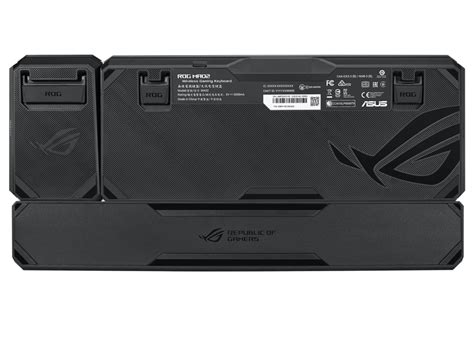
The ROG Claymore II is a physically imposing device. When the numpad is attached and the included magnetic wrist rest is in place, the keyboard has a very large footprint. Many users who are upgrading from a compact TKL or a standard office keyboard find that their desk space becomes cramped. This is particularly problematic for low-DPI gamers who need large areas for mouse swipes.
Because the wrist rest is a single, solid piece designed to span the entire length of the keyboard and numpad, it cannot be easily adjusted if you decide to use the numpad in a detached "floating" mode. Buyers often fail to measure their available desk depth and width, leading to an ergonomic setup where the mouse is pushed too far to the right, causing shoulder strain. To avoid this, it is essential to verify that your desk can accommodate a keyboard that is approximately 462mm wide and significantly deep once the plush wrist rest is attached.
Mistake #4: Neglecting the Impact of Optical vs. Mechanical Feel
There is a subtle but distinct difference in the "feel" of optical switches compared to traditional mechanical ones. Because the RX switches use a stabilizer shroud and a central spring, the travel is exceptionally smooth, but some purists find it "soulless" or overly clinical. The lack of standard mechanical friction can make the keyboard feel different than what a user might be accustomed to if they are coming from a classic Cherry MX Red or Brown board.
Furthermore, the actuation point on the RX Red (linear) switches is 1.5mm with an initial force of 40gf. This makes them very sensitive. Buyers who are prone to…
Pros and Cons
- Pro: Exceptional Build Quality – The top plate is made of brushed aluminum, providing a rigid, premium feel that resists flexing during intense gaming sessions.
- Pro: Versatile Modular Design – The ability to switch the numpad between the left and right sides, or remove it entirely, offers unparalleled flexibility for different gaming genres and productivity tasks.
- Pro: Low-Latency Wireless Performance – The 2.4 GHz RF connection is rock solid, offering performance that is indistinguishable from a wired connection, which is essential for competitive play.
- Pro: RX Optical Switches – These switches provide a wobble-free experience and near-instant actuation, making them some of the most stable and responsive switches on the market.
- Pro: Fast Charging and Passthrough – The inclusion of USB-C fast charging and a USB 2.0 passthrough port adds significant convenience for charging other devices or connecting a mouse dongle.
- Con: Proprietary Keycap Stems – The inability to use standard MX-style keycaps severely limits customization options for enthusiasts.
- Con: High Price Point – It is one of the most expensive keyboards on the market, retailing at a price that often exceeds two or three standard high-quality mechanical keyboards.
- Con: Large Physical Footprint – Even with the modularity, the full assembly requires significant desk real estate, which may not be suitable for small setups.
- Con: Software Dependence – To get the most out of the RGB lighting and macro programming, users must install Armoury Crate, which can be resource-intensive and occasionally buggy.
Comparison: ROG Claymore II vs. Competitors
When evaluating the ROG Claymore II, it is helpful to see how it stacks up against other premium wireless and modular options. This table highlights key differences in technology and design philosophy.
| Feature | ROG Claymore II | Logitech G915 TKL | Razer DeathStalker V2 Pro |
|---|---|---|---|
| Switch Type | RX Optical (Linear/Clicky) | GL Low-Profile Mechanical | Low-Profile Optical |
| Modularity | Detachable/Reversible Numpad | Fixed Layout (TKL) | Fixed Layout (Full/TKL) |
| Connectivity | 2.4 GHz RF / Wired | 2.4 GHz / Bluetooth / Wired | 2.4 GHz / Bluetooth / Wired |
| Wrist Rest | Included (Magnetic/Leatherette) | Not Included | Not Included |
| Customization | Proprietary Stems (Low) | Proprietary Low-Profile (Low) | Proprietary Stems (Low) |
| Fast Charging | Yes (USB-C) | No (Micro-USB on older units) | Yes (USB-C) |
Buying Guide: How to Avoid These Mistakes
To ensure that the ROG Claymore II is the right purchase for you, follow this systematic approach to evaluating your needs and environment. This guide is designed to filter out the marketing hype and focus on the practical realities of daily use.
Step 1: Evaluate Your Modularity Needs
Ask yourself honestly: "How often will I actually move the numpad?" If the answer is "rarely," you may be better off with the ROG Strix Scope or a similar high-end fixed-layout keyboard. The modularity is the primary driver of the cost. If you are a streamer who wants a numpad on the left for OBS shortcuts while keeping your mouse hand free, or if you are a coder who needs a numpad for data entry but wants it out of the way for gaming, then the Claymore II is a perfect fit. If you just like the idea of it but don't have a specific use case, you are likely paying for functionality you won't use.
Step 2: Check Your Desk Dimensions
Measure your desk before you buy. You need at least 50cm of width dedicated solely to the keyboard if you want to use the numpad on the right and have room for a mouse. If your desk is shallow, the large wrist rest might push the keyboard so far back that your monitor stands are in the way. Ensure that your setup can accommodate the full "winged" configuration of the Claymore II without compromising your ergonomics.
Looking for the best Electronics deals on Amazon?
See Deals →Step 3: Test the Switch Preference
Since the switches are the most critical part of the typing experience and cannot be changed, try to test the RX Optical switches in a retail environment if possible. The RX Reds are smooth and fast, excellent for FPS games. The RX Blues have a distinct "click" and tactile feel that is great for typing but can be loud for those in shared spaces or on voice calls. Remember that these switches feel "heavier" and more stable than standard mechanicals due to the internal stabilizing structure.
Step 4: Understand the Software Ecosystem
The ROG Claymore II relies on ASUS Armoury Crate for firmware updates, RGB synchronization via Aura Sync, and macro mapping. If you already own ASUS components (motherboard, GPU, mouse), the integration will be seamless. However, if you prefer a "plug-and-play" experience without heavy software suites, be aware that you will need this software to unlock the full potential of the keyboard, including battery level monitoring and persistent profile saving.
Step 5: Consider the Secondary Features
The Claymore II includes four customizable media keys on the numpad and a volume control roller. These are incredibly useful for productivity. If you find yourself constantly adjusting volume or skipping tracks during work or play, these additions are significant value-adds. Also, consider the USB passthrough; it requires an extra USB port on your PC to function, but it provides a convenient place to plug in your mouse dongle, which can improve signal reliability by keeping the receiver closer to the mouse.
The Maintenance and Longevity Factor
A mistake often overlooked is the long-term maintenance of a modular device. The gold-plated connectors that link the numpad to the main chassis are sensitive. Dirt, dust, or skin oils can accumulate on these pins over time, leading to connection drops or stuttering key presses on the numpad. Owners should be prepared to occasionally clean these contact points with a small amount of isopropyl alcohol and a lint-free swab.
Furthermore, because the keyboard is wireless, the lithium-ion battery will eventually degrade over several years. While 4000 mAh is a large capacity that will last a long time, users should avoid keeping the keyboard plugged into a fast charger 24/7 if they want to maximize the battery's lifespan. Using the keyboard in wired mode occasionally or letting the battery cycle will help maintain its health. Buyers should consider if they are comfortable with a device that has a "shelf life" based on its internal battery, or if they would prefer a strictly wired mechanical keyboard that can theoretically last decades.
Conclusion
The ROG Claymore II is an impressive feat of engineering that solves specific problems for a niche group of enthusiasts. Its biggest "mistakes" aren't flaws with the product itself, but rather misalignments between the product's specialized features and the buyer's actual needs. By understanding the proprietary nature of the RX switches, the true ergonomic demands of the modular layout, and the physical requirements of the hardware, consumers can make an informed decision.
Avoiding the Modular Modnum Trap is about being honest with how you use your peripheral. If you value stability, speed, and the unique ability to rearrange your workspace, the Claymore II stands virtually alone in its class. It is a premium tool for a premium setup. However, for the casual user or the custom-keycap enthusiast, the limitations of the ecosystem might outweigh the benefits of the detachable numpad. Ultimately, the successful purchase of an ROG Claymore II is one where the user maximizes its modularity every day, transforming their desktop from a productivity workstation to a high-performance gaming arena with a simple slide of a connector.